Device and tenant pages
Select any row on the Fleet page to open its page. Devices and Microsoft 365 tenants work the same way.
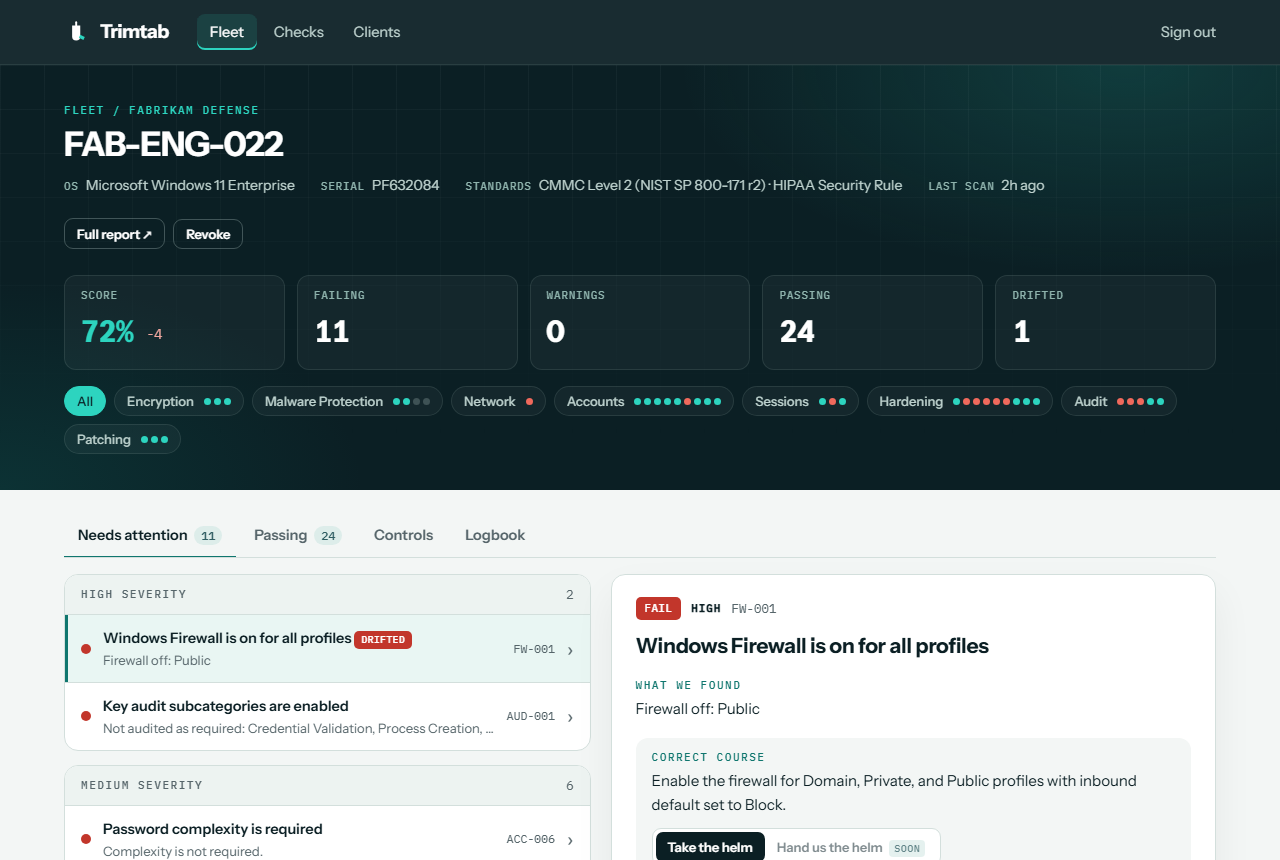
Header
- Score with the change since the previous scan, plus Failing, Warnings, Passing, and Drifted counts.
- Standards the client is scored against, and the Last scan time.
- Category strip: one pill per category with a dot for each check: teal for pass, red for fail, an outlined dot for a warning. Select a category to filter the lists below. Select All to clear.
Tabs
Needs attention : Failing and warning checks grouped by High, Medium, and Low severity. Select a row to open its details in the side panel. A Drifted tag marks checks that passed on the previous scan.
Passing : Passing checks, plus a Not evaluated group for checks that couldn't run, for example ones that need Microsoft Entra ID P1.
Controls : The client's standards as families of controls, each with a pass/fail bar. Open a family to see each control in plain English, and select a check ID to jump to it.
Logbook : The score trend, what changed since the last scan, and every scan with links to its report and raw JSON.
The side panel
Each check's panel shows:
- What we found: the result in plain language.
- Correct course: a summary fix and step-by-step instructions. See Correcting course.
- Why it matters: the CMMC and HIPAA requirements the check maps to, in plain English, with links to the official source.
- Evidence: the raw values the scan collected.
On a phone, the panel opens as a full-screen sheet. Use the arrow keys to move through the list on a computer.
Share a finding
The page address remembers the open tab and check, for example …/devices/<id>#tab=issues&check=ACC-001. Send that link and a colleague lands on the same finding.
Actions
| Button | What it does |
|---|---|
| Full report ↗ | Opens the printable report in a new tab. See Reports. |
| Scan now | Tenants only. Runs a Microsoft 365 scan immediately. |
| Revoke | Devices only. See below. |
| Disconnect | Tenants only. See below. |
Revoke or disconnect
- Revoke a device that's retired or compromised. Its Lookout can no longer report. History is kept. To bring it back, re-run the installer with an enrollment key.
- Disconnect a tenant to stop scanning it. To remove Trimtab's access entirely, also delete Trimtab M365 Scanner from the tenant's Enterprise applications.